Workbook Creator: A Coach's Template Checklist
Workbook creator: check page types, prompts, writing space, brand styles, and export format before you choose a digital workbook template for coaching.
By Ultimate Coaching Kit by Cosmo Suite · Editorial policy
Published · 8 min read
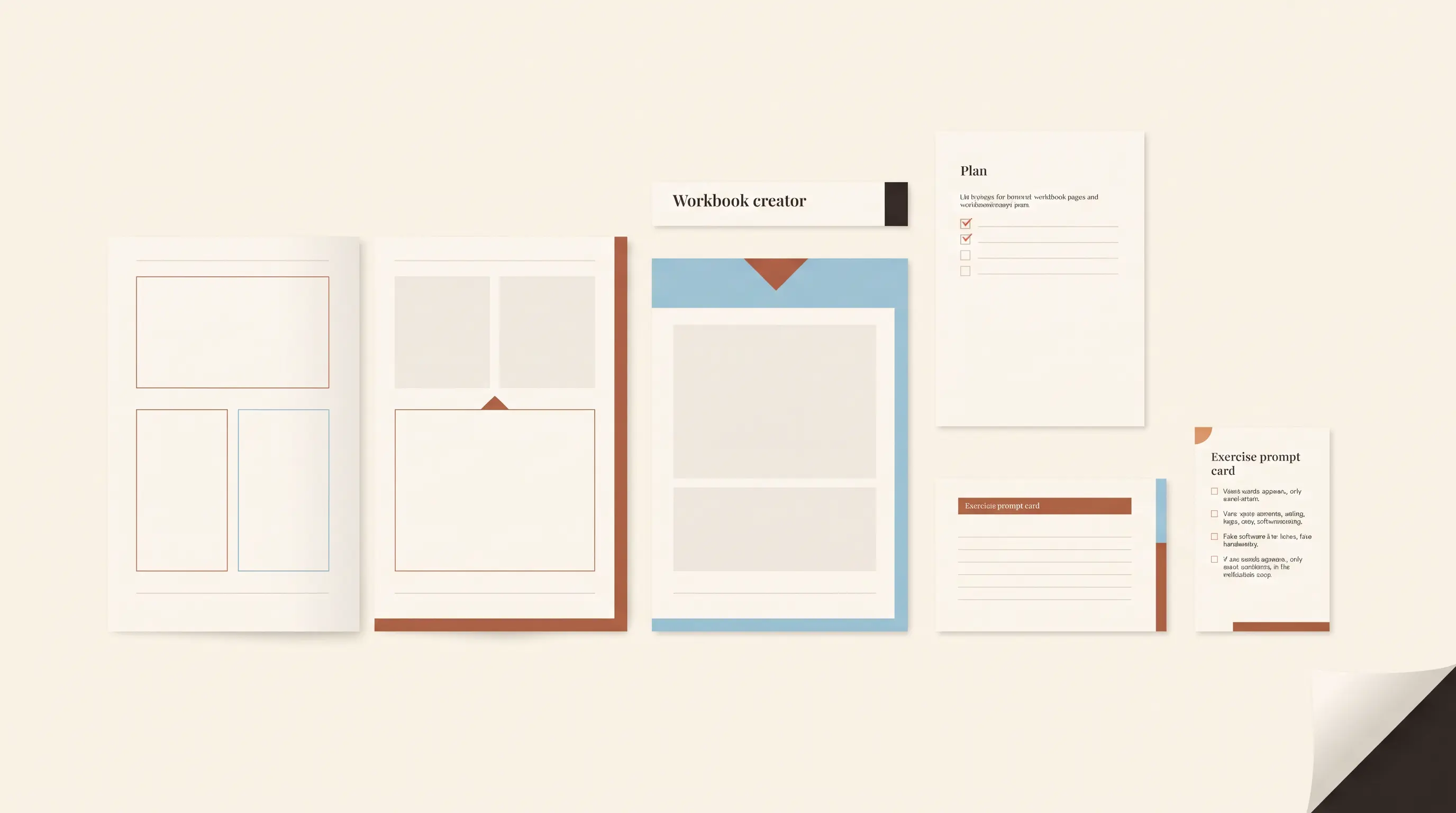
A template can look polished and still leave a coach stuck: the reader reaches a prompt and has no clear way to answer it. Before you choose a workbook creator, check each page for three things: the reader's task, what they will have done, and the format they will use.
If your coaching materials need to cover more than one job, Ultimate Coaching Kit has a named Workbook Creator kit to review alongside the rest of its materials.
This check keeps decoration and page count from driving the plan. It also separates printable writing space from fields a person can type into. Canva can help with the visual layout, but the file format determines what readers can do with it. Use the checklist to choose pages, adapt them to your coaching work, and inspect the export before sharing.
Workbook creator checklist at a glance
A workbook creator template is easier to evaluate when each page has a job and a clear use. Start with the main task, then use this table to spot missing instructions or an unsuitable format.
| Page role | Reader action | Check before keeping it | Format question |
|---|---|---|---|
| Opening | Understand the purpose | Does it say who the workbook is for and what to do first? | Is the text readable on screen and in print? |
| Context | Learn one idea | Does the reader need this explanation before the exercise? | Can the reader scan the headings? |
| Exercise | Make a choice or write | Is the prompt specific and within scope? | Is there enough space for the response? |
| Reflection | Review what happened | Does it help the reader connect the activity to their situation? | Does it work as print, screen text, or a form field? |
| Checklist | Review actions | Can each item be checked or revisited? | Are labels clear without color alone? |
| Next step | Continue or bring a question | Is the action realistic and clear? | Does it point to a real next step? |
Keep a page when it helps the reader understand, complete, or review the task. If it does none of those things, remove it or use the space for a clearer instruction.
Start with the reader's finish line
Write one sentence about what the reader should finish. Make it specific enough to shape the pages. “Plan one week of outreach” gives you more to design around than “grow your coaching business.” This is a planning example, not a promise about what a reader will achieve.
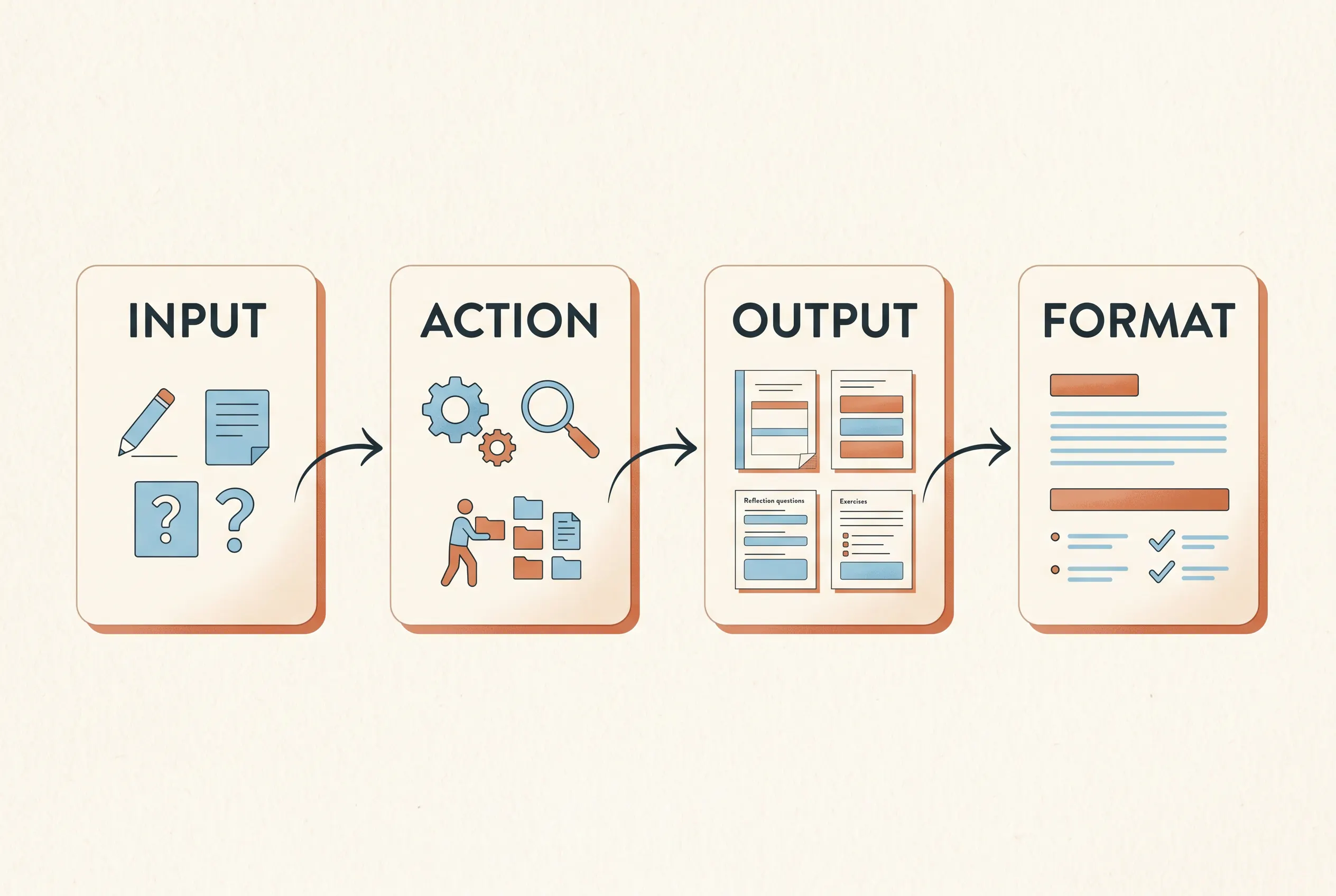
Now list the reader's starting point, the action they take, and the output they leave with. If the workbook supports a workshop, the output might be a draft they can discuss. If it supports a coaching session, the output might be one decision or a question to explore. Avoid asking for personal details unless they are needed for the activity.
For example, a career coach could plan a short workbook around preparing for a role-change conversation. The reader might first name the conversation they need, then list the facts they want to clarify, then write one question to bring to a meeting. Those steps form a route. The example is hypothetical; it is not a client case or a tested result.
Use this page-fit test for each section:
- Input: What does the reader need to know, choose, or write before starting?
- Action: What will they do on this page?
- Output: What should they have when they finish?
- Format: Is this a printed page, a screen-readable document, or an interactive form?
If two pages ask for the same input and produce the same output, combine them. If a prompt needs more context, place that context before the response area instead of making the reader guess.
Which page types earn a place?
Choose layouts for the work in front of you. A coaching workbook may need orientation, context, an activity, reflection, and follow-through. A single exercise may not need a contents page or module dividers.
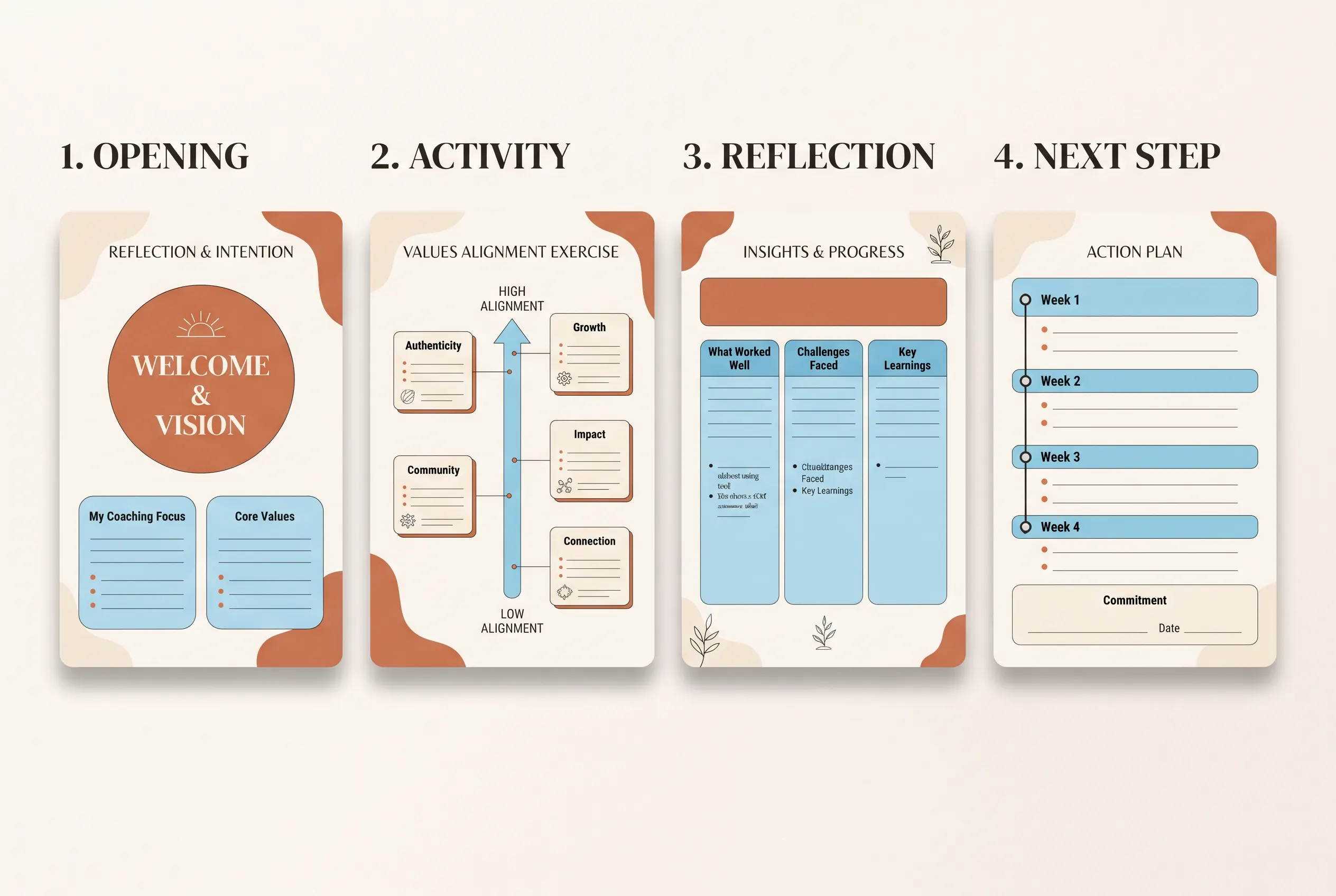
An opening page sets the purpose and tells the reader how to begin. A short context page explains an idea that the reader needs for the activity. An exercise page gives one clear instruction and enough space for the expected response. A reflection page helps the reader notice a choice, pattern, or question. A checklist works when each line names an observable action. A closing page can point to the next conversation or a step the reader can take.
Add a contents page when the workbook has several sections and readers may return to them later. Add module dividers when the topic changes enough that a reader could lose their place. For a brief handout, these pages can create extra navigation without adding useful guidance.
This is where a workbook differs from a single coaching worksheet. A worksheet can carry one focused activity. A workbook usually guides the reader through connected steps. If you are creating a short free resource, compare that structure with an ebook or workbook format for a coaching freebie, then choose the simpler format that fits the reader's task.
Check prompts, response space, and privacy
A prompt should tell the reader what to do without making them infer the task. Replace broad questions such as “What do you want?” with a bounded prompt that fits the session, such as “Name one decision you want to make before our next meeting.” Keep it relevant to your service and make clear whether the reader can skip it.
Then match the response space to the answer. A one-word rating needs a small area. A reflection may need lines or an open text area. Do not put a long answer box under a yes-or-no question, and do not squeeze an explanation into a tiny caption.
For pages that collect information, ask only for what you need and explain why. The Maryland Digital Playbook's form guidance recommends plain language, visible labels, and a simple layout. It is written for forms, so apply those details when your workbook page functions like a form. A coaching workbook is not an intake form by default.
Read every instruction aloud. If you need to explain the prompt in a separate message, revise it before laying out the page. A consistent visual style cannot make a confusing question clear.
Choose print, screen, or interactive PDF first
Decide how readers will use the workbook before styling its response areas. A printable workbook can use lines or boxes for handwriting. For screen use, keep type and spacing comfortable at normal zoom. A true interactive PDF needs fields that readers can focus and fill with a keyboard or assistive technology.
These formats are not interchangeable. Maryland's digital guidance says Canva cannot create real interactive PDF form fields. A drawn square may look like a checkbox, but it is only a graphic. If readers need interactive fields, use a suitable PDF form tool and test the fields separately. Adobe's accessible PDF guidance explains that form fields need labels and a logical tab order. Do not describe blank lines in a designed PDF as fillable fields.
For a printed page, leave margin for handwriting and check that the layout still makes sense without color. For screen use, check that the reader can zoom and move through the page without losing the heading that explains a prompt. If your audience needs both, review both versions. State which version you are providing so readers know what to expect.
Make the visual system easy to reuse
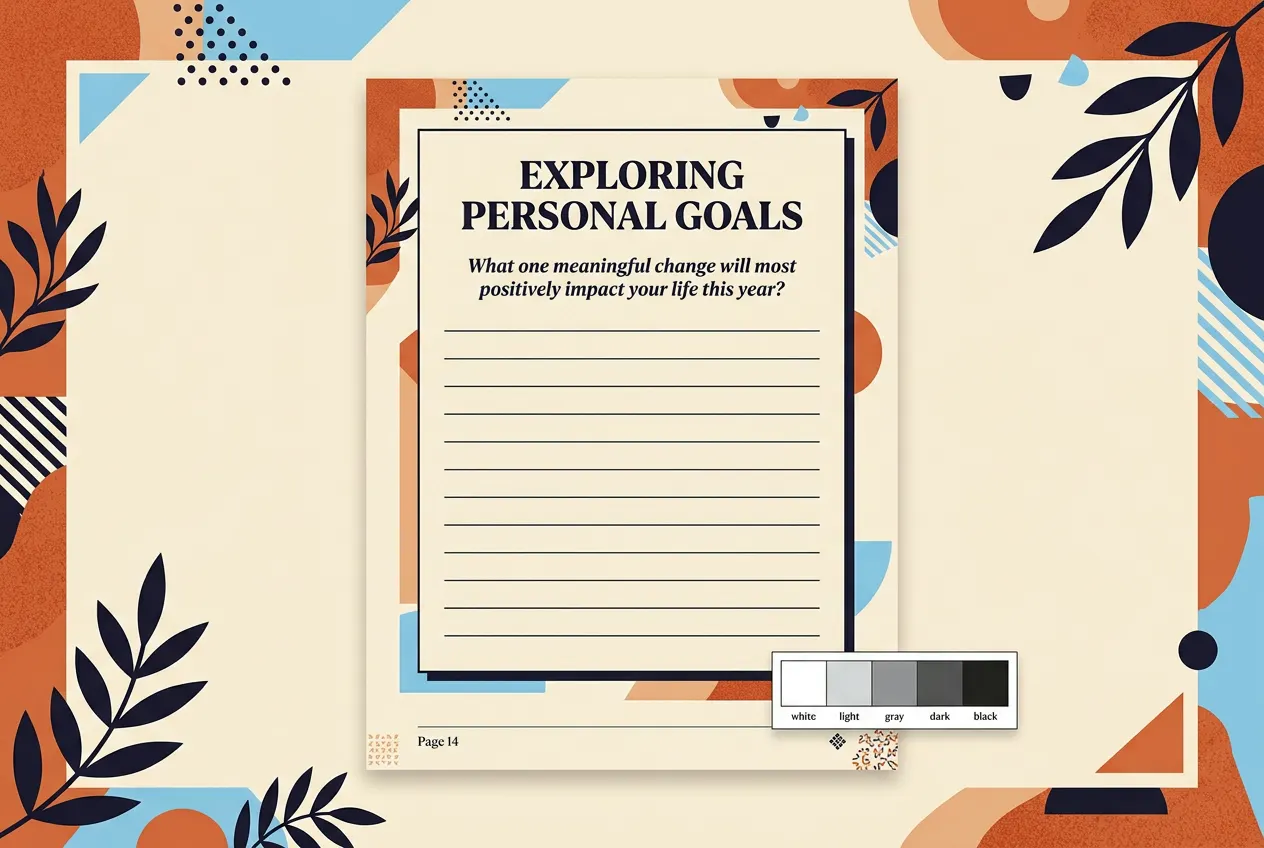
Choose the page's hierarchy before choosing decorative details. Use a clear title, a short instruction, and a response area that looks like the place to act. Keep heading styles consistent across sections, and use one visual cue for recurring elements such as examples or reflection prompts.
Use color to support the hierarchy, not carry meaning alone. A label such as “Your turn” should remain understandable in grayscale and for readers who do not distinguish the colors. Digital.gov's visual design guidance recommends visible field labels and simple layouts for form content. That guidance is most relevant to workbook pages that ask readers to enter information.
A coach can keep the visual style steady while changing the page layout to match the activity. A worksheet needs writing room. A teaching page needs a readable explanation. A checklist needs space to mark items. The coaching kit overview describes how materials can support separate jobs while keeping one practice's visual identity. Do not force every page into the same grid just to make it look consistent.
Export and inspect the actual file
Review the downloaded workbook, not just the editor canvas. Canva's download instructions say to open Share, select Download, choose a file type, adjust available settings, and select all, the current, or custom pages for a multi-page design. After export, check page order, text wrapping, image placement, links, and the final page count.
Open the file on a phone and on the device readers are likely to use. Print a page if handwriting matters. Check that a prompt and its response area stay together, that no important label is too small, and that page numbers or section names help readers return to the right place.
If you share a Canva Template link, verify that your account can create it and that the recipient can open it. Canva's template-link guidance states that creating and sharing these links is available to specific account types, including Pro, Teams, Enterprise, Education, and Nonprofits. Account rules can change, so check the current instructions before promising a sharing workflow.
Where Ultimate Coaching Kit fits
Ultimate Coaching Kit includes a named Workbook Creator Canva kit. It is one of 13 kits in the approved contents list, alongside client-work and marketing materials. The product list does not establish a specific page count, interactive PDF fields, or a free Canva plan, so check the files and current Canva options before relying on any of those details.
A workbook creator template can give you layouts to review and adapt. You still need to choose the reader's task, write your own coaching prompts, and check the exported file. If a ready-made set of coaching materials would help with that design work, review Ultimate Coaching Kit. The editorial policy explains how the site checks product claims and sources.
Before sharing, check each page's purpose, clarify its instructions, and choose the right format. Inspect the exported file. If readers need an interactive form, add and test real fields. If they need paper space, leave room to write.
Frequently asked questions
What should a workbook creator template include?
Look for page layouts that fit the reader's task: an opening, short teaching or context, an exercise, room to respond, a way to review the work, and a next step. Add a contents page or divider when the workbook has enough sections to need one.
How many pages should a coaching workbook have?
There is no fixed page count. A single-session workbook may need only a few pages, while a multi-part workshop needs more room for each topic and activity. Keep a page when it helps the reader understand, do, or review the task.
Can I make a workbook in Canva?
Canva can be used to design and download a workbook. Check the current download options, template-sharing eligibility, and the rights for any elements before you share the finished file.
Can a Canva workbook PDF have fillable fields?
A designed page with blank lines or boxes is not the same as an interactive PDF field. Maryland's digital guidance says Canva cannot create real interactive PDF form fields. If readers need keyboard-entry fields, add and test them with a suitable PDF form tool.
How do I make a workbook easier to use on a phone?
Use short instructions, clear headings, and a layout that does not depend on tiny text or side-by-side columns. Preview the downloaded file on a phone. If the reader needs to write long answers, offer a format that gives them enough space.
Which workbook page should I design first?
Start with the main activity page. It reveals what the reader needs to know first, what instructions are missing, and how much room the response needs. Then design the opening and follow-up pages around that task.
Sources
Keep reading
Workbooks and lead magnets
Workbook Template for Coaches: Plan Each Page With a Clear Job
workbook template for coaches: plan a clear goal, module divider, exercise, reflection, and next step for a useful client or workshop workbook.
· 7 min read
Workbooks and lead magnets
Ebook Template Canva: Make a Coaching Freebie People Can Use
Ebook template Canva: plan a coaching freebie, choose a reading size, shape each section, and export a practical PDF your audience can use.
· 9 min read