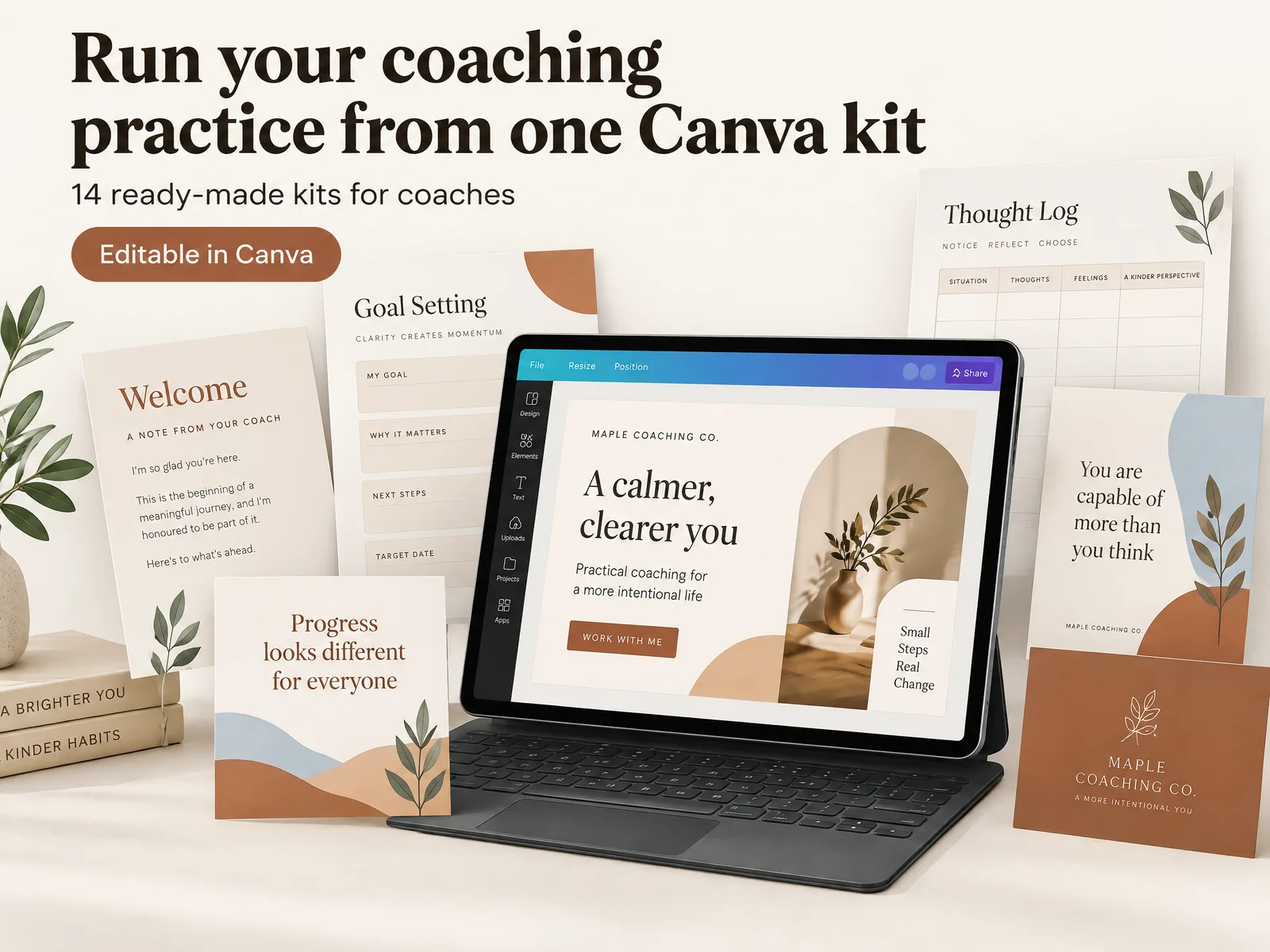
Workbook Template for Coaches: Plan Each Page With a Clear Job
workbook template for coaches: plan a clear goal, module divider, exercise, reflection, and next step for a useful client or workshop workbook.
By Ultimate Coaching Kit by Cosmo Suite · Editorial policy
Published · 7 min read
A workbook can look polished and still leave a reader asking, “What do I do on this page?” Give each page one job and show the reader what to do with it. A workbook template for a coach should guide someone from a stated goal to a useful action, with enough space to think and respond along the way.
Start with the purpose. Introduce one idea, give the reader a task, make room for reflection, and close with a next step. The examples use four pages from a delivered coaching workbook template. They show page layouts, not finished coaching copy, so replace every placeholder before you share your own version.
A coaching workbook template at a glance
Plan a workbook around the reader's next task. For a single workshop or client exercise, this page map is a useful starting point:
| Page | Job | What the reader should find |
|---|---|---|
| Opening | Set the purpose | Who the workbook is for and what it will help them do |
| Contents | Show the route | Sections in the order the reader will use them |
| Module divider | Mark a shift | The topic of the next section and a short orientation |
| Teaching page | Explain one idea | Brief context, examples, or a model |
| Exercise | Put the idea to work | Clear directions and room to write or make a choice |
| Reflection | Help the reader notice | Questions that connect the exercise to their own situation |
| Checklist | Support follow-through | A short set of actions or items to review |
| Closing | Point to the next step | What to revisit, try, or bring to the next session |
You may not need every page. A one-session workbook could combine the opening with the instructions and end after one exercise and reflection. A workshop with several topics may use module dividers to help people see where one section ends and another begins.
Start with one outcome, then choose the page sequence
Write the workbook's purpose as one sentence before you open a design tool. For example: “After this workbook, the reader can outline one week of marketing activity.” That is a planning example, not a promise about what any reader will achieve.
Next, identify the decision, reflection, or action that would show the reader has engaged with the topic. Put that task near the center of the workbook. Then add only the pages that prepare for it or help the reader use it afterward.
A simple sequence is:
- Orient: name the topic and tell the reader how to use the material.
- Explain: introduce one idea at a time, in plain language.
- Apply: give a prompt or exercise with a clear instruction.
- Reflect: ask what the reader noticed or wants to change.
- Continue: suggest a next action or a question to bring to a session.
If a page does not support the outcome or the main activity, remove it or save it for another workbook. This keeps the file focused and makes the reader's route easier to follow.
Give each workbook page a clear job
The contents page, module divider, exercise, and checklist in the delivered Coaching Workbook illustrate four different page roles. The page designs contain placeholder copy, so treat them as layout examples and replace the sample text with material that fits your own work.
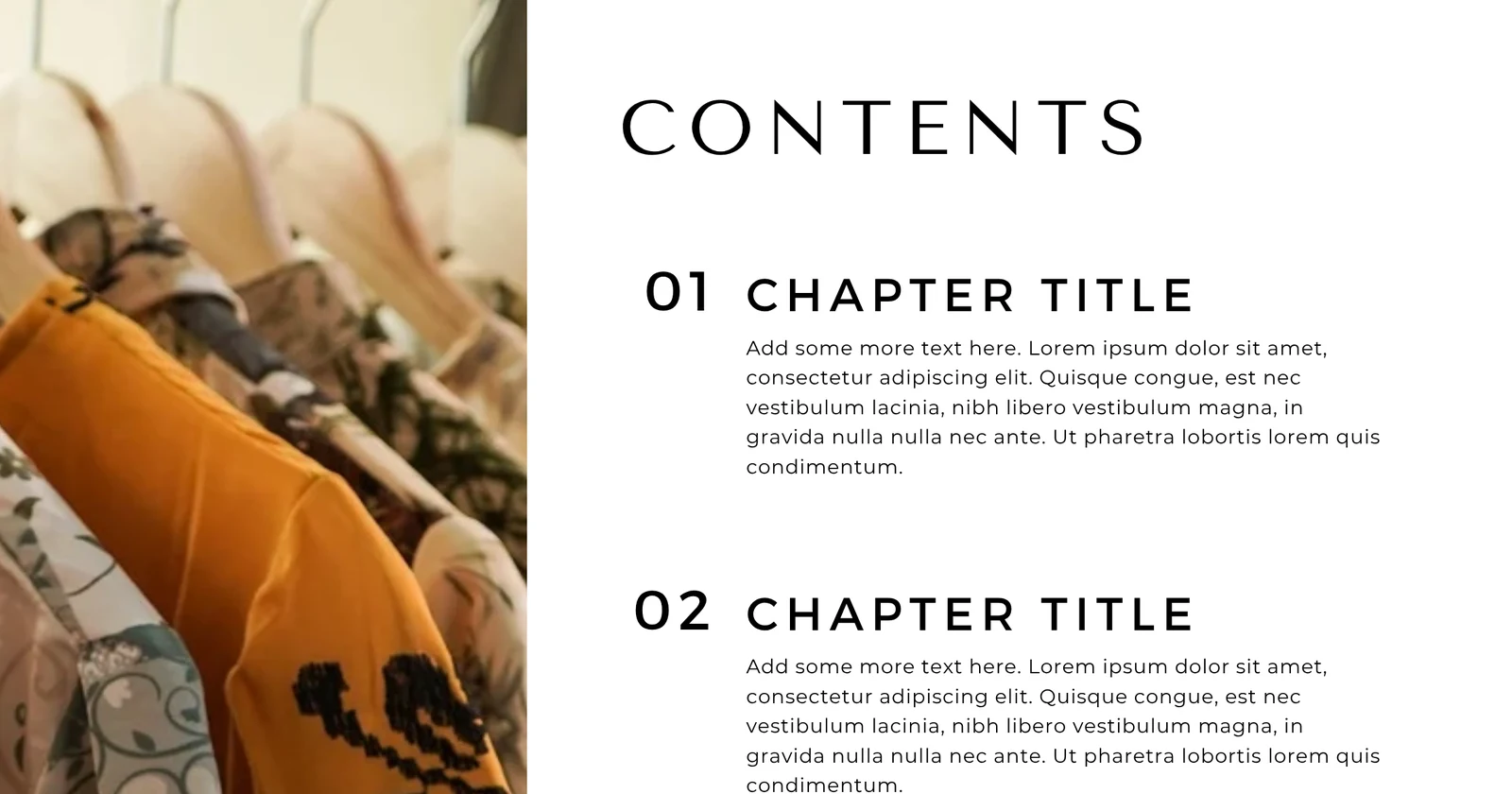
A contents page should preview the workbook's actual sections. Keep its labels short and use the same wording as the section headings. If the workbook is only a few pages, a contents page may add little; use the space for instructions instead. The cover image above shows a contents layout with sample chapter headings and placeholder descriptions. Replace those with the sections your workbook actually contains.
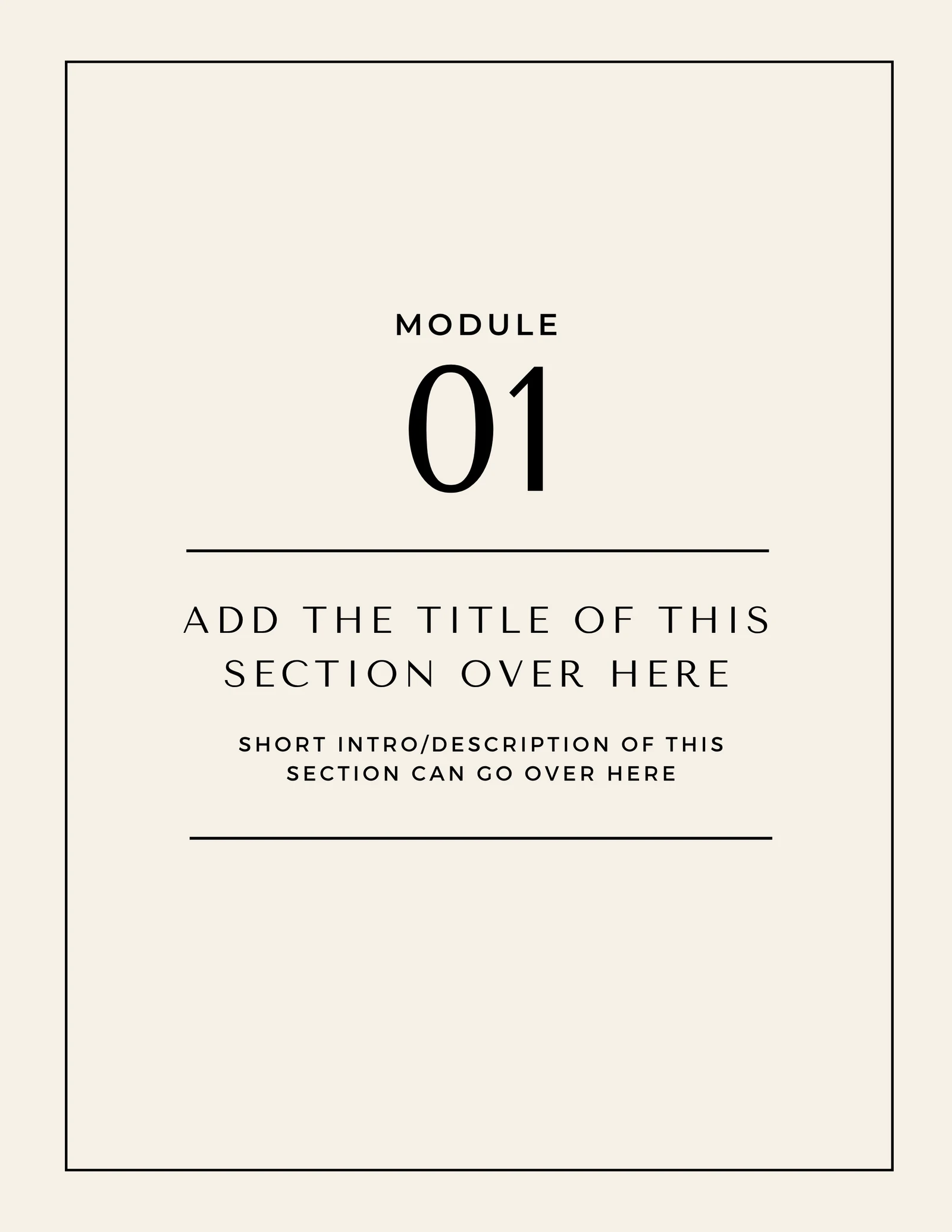
A module divider helps when the reader moves between distinct topics. Replace the sample heading and description, and make sure the divider tells the reader what the next section covers. If your workbook has one topic, skip this page or use a simple section heading.
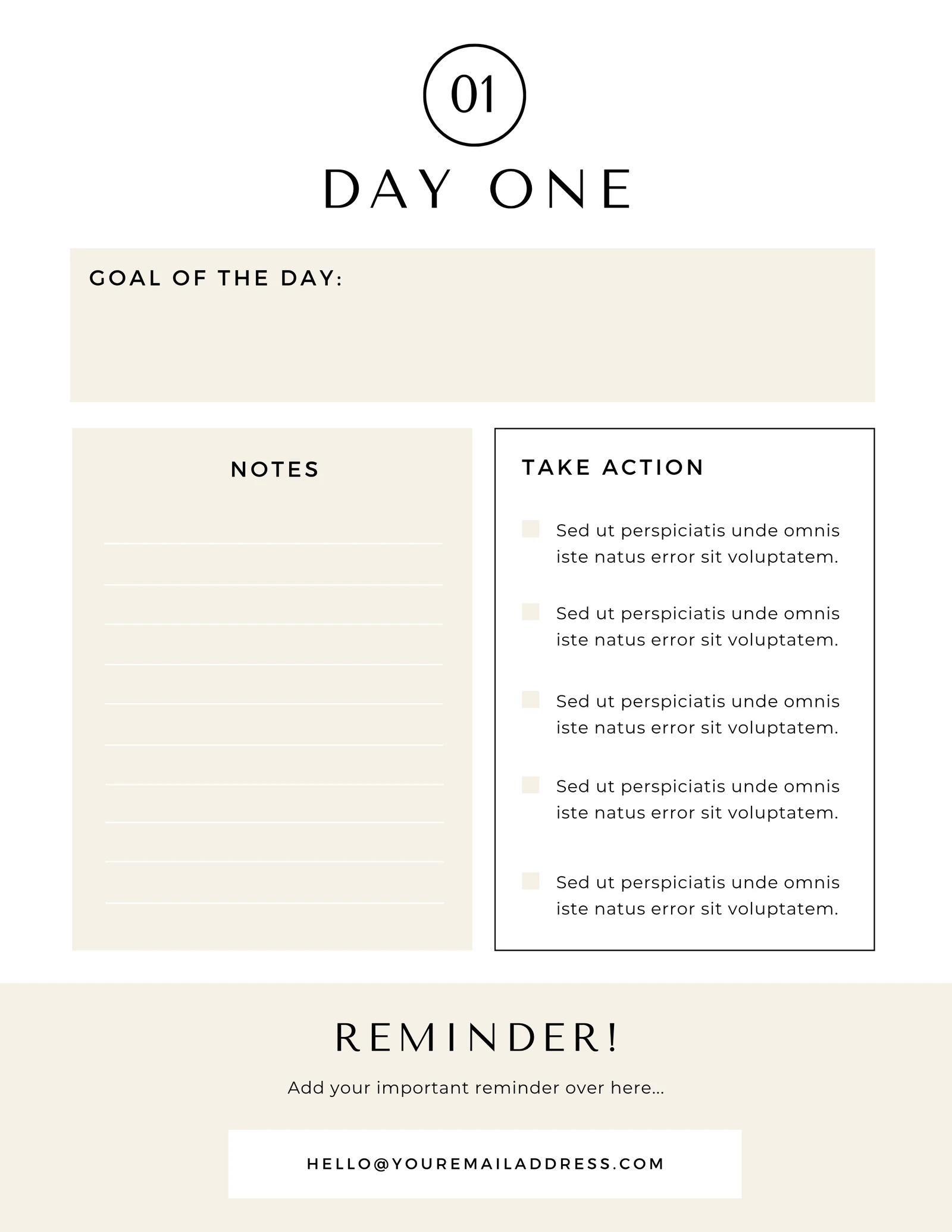
An exercise page should make the task easy to understand before the reader begins. The Day One layout separates a goal area, notes, actions, and a reminder. Use those areas only if they fit the activity. Replace generic sample text with specific instructions, and leave enough room for the kind of answer you expect.
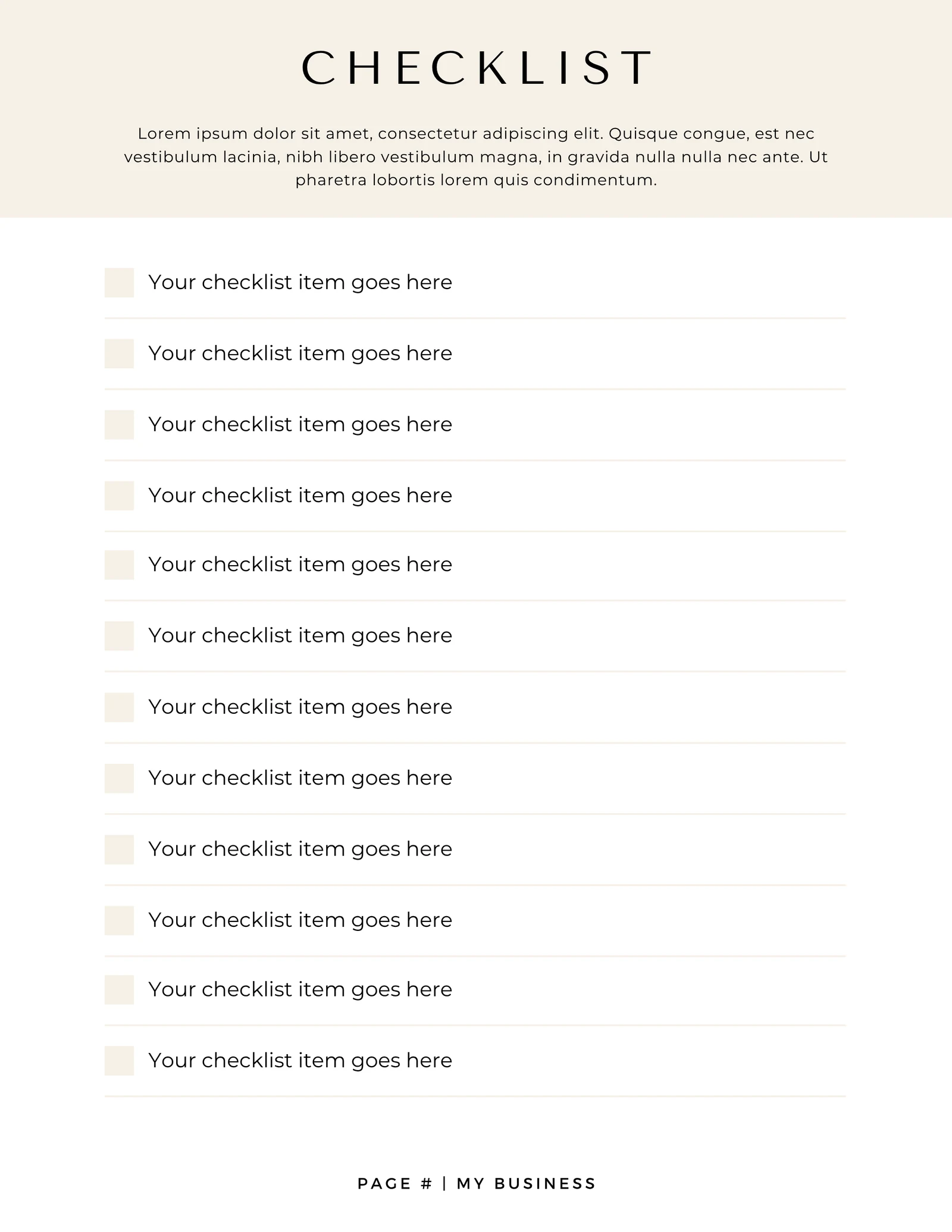
A checklist works when each line describes one observable action or item to review. Avoid vague entries such as “make progress.” Write a step the reader can mark as complete or revisit. If the task needs explanation, put that context before the checklist rather than squeezing it into every line.
Turn a blank exercise into a useful prompt
A good worksheet prompt tells the reader where to start and what kind of response to make. Before you add one to a workbook, check four things:
- Context: does the reader know why this question appears here?
- Action: is it clear what to write, choose, or try?
- Scope: can the reader answer it without sharing details they would rather keep private?
- Space: does the page leave enough room for a useful response?
For example, “What is one small action you want to take this week?” gives the reader a bounded task. You can add a line that asks them to note when they plan to do it. Keep the prompt relevant to your service and avoid collecting sensitive information unless you have a clear reason and a suitable process for handling it.
Read every prompt aloud. If you need to explain what it means, rewrite it before you lay out the page. A clean design cannot fix an unclear question.
Make the workbook usable on screen and in print
Design for the way the reader will use the file. A workbook viewed on a phone needs short text blocks and legible type. A printed page needs enough margin for handwriting and a layout that remains clear without color. If readers may use both formats, check both before sending the file.
Keep heading styles consistent so readers can recognize the start of a new section. Use contrast between the text and background, and do not rely on color alone to communicate meaning. Leave writing space near the question it belongs to. Add page numbers when the reader may need to return to a particular section.
Then review the exported file from beginning to end. Check that the page order makes sense, that nothing has shifted, and that links or fields work as intended. Canva's download instructions say to open Share → Download, choose a file type, and select all pages, the current page, or custom pages for a multi-page design. Check the exported PDF itself before sharing it.
Designing a workbook in Canva and sharing it as a reusable template are separate steps. Canva's template-link instructions say creating and sharing a Template link is available to specific account types, including Pro, Teams, Enterprise, Education, and Nonprofits. Check the current plan and access rules before you promise a recipient that a link will let them make their own copy.
Choose a workbook, worksheet, or slide deck
Use a workbook when the reader needs to move through a sequence: learn an idea, complete an activity, reflect, and decide what comes next. A single worksheet fits one focused task. Slides work better when you are presenting to a group and controlling the order of information as you speak.
You can combine formats, but give each one a distinct role. A slide deck can introduce a workshop topic; a workbook can hold the exercises people complete during or after it. A one-page worksheet can support a single coaching conversation. Repeating the same material in all three formats adds pages without helping the reader.
If you are preparing a wider set of materials, Ultimate Coaching Kit includes Canva kits for coaching, marketing, and brand assets. Review each item and adapt it to your own niche and process. The coaching kit overview explains how to choose materials by the job you need them to do. You can also read about Ultimate Coaching Kit and our editorial policy for more on the site and its content.
Build the first version, then remove what the reader does not need
A workbook template should start with a real reader task. Map the route, write the instructions, then settle the visual style. Use a contents page, divider, exercise, or checklist when it helps the reader move through the work.
Before sharing, replace placeholder text and images, check the exported pages, and confirm that the prompts suit your service. If you need an editable starting point for a wider set of coaching materials, see Ultimate Coaching Kit. Keep the workbook short enough to use and complete enough to support its purpose.
The Canva download and template-link details above were checked against its Help Center on October 24, 2026. If you want an editable starting point for a broader set of coaching materials, review Ultimate Coaching Kit. Questions about the site can go through the contact details on our about page.
Frequently asked questions
What should a coaching workbook include?
Start with one clear goal, then include only the pages that help the reader reach it: an introduction, short teaching sections, an activity, space to reflect, and a next step. A checklist can help the reader review or apply the work.
How many pages should a coaching workbook have?
Use as many pages as the reader needs to understand and complete the activity. A short workbook for one session may need only a few pages; a multi-part program may need more. Remove pages that repeat the same job.
Can I make a coaching workbook in Canva?
Yes. Canva can be used to design a workbook. Check that you can edit the template, that its text and images fit your use, and that you have the rights needed for any elements you share.
How do I export a workbook from Canva?
Canva's Help Center says to open Share, choose Download, select a file type, and download the design. For a multi-page design, you can choose all pages, the current page, or selected pages. Check the export before sharing it.